USB Device Mode
The MetaModule has a single USB-C jack, which can work in two directions:
-
As a USB host, so you can plug things into the MetaModule: MIDI controllers and USB drives.
-
As a USB device, so you can plug the MetaModule into a computer. The MetaModule can appear on the computer as a MIDI device, or as a webcam that mirrors the screen.
Starting in firmware v2.3.0, you choose how the USB jack behaves in
Settings > Prefs > USB.
USB Mode
-
USB Mode selects whether the MetaModule acts as a USB host, a USB device, or decides for itself.
-
Auto (default): the MetaModule detects what's on the other end of the cable and picks host or device automatically. Plug in a MIDI controller and it becomes a host; plug into a computer and it becomes a device.
-
Host Only: always act as a USB host. Use this if a device you plug in isn't detected reliably in Auto mode.
-
Device Only: always act as a USB device. Use this if your computer doesn't reliably connect to the MetaModule in Auto mode.
-
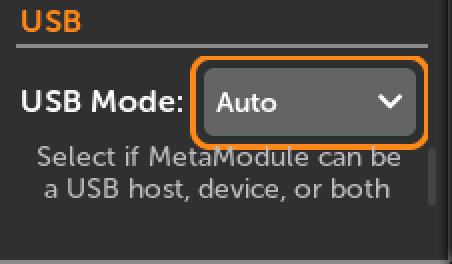
Auto mode relies on the computer or device negotiating the USB connection. Most computers and devices do this correctly, but if a connection isn't being made, forcing the role with Host Only or Device Only usually fixes it.
After changing the setting, you need to disconnect and re-connect the USB cable for it to take effect.
Device Mode
-
Device Mode selects what the MetaModule looks like to a computer when it's acting as a USB device.
-
MIDI (default): the MetaModule appears as a MIDI device named MetaModule MIDI. See MIDI Device mode below.
-
Video: the MetaModule appears as a webcam named MetaModule Screen, which mirrors the display. See Mirroring the screen below.
-
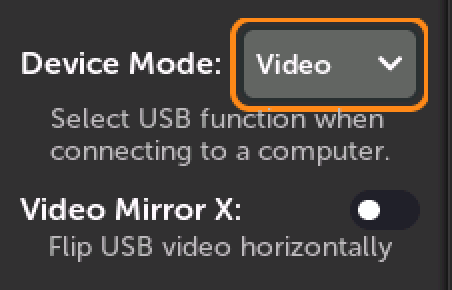
Only one Device Mode is active at a time: the MetaModule can be a MIDI device or a webcam, but not both at once.
When in "Host Only" mode, the Device Mode section will be disabled.
Changes take effect as soon as you click Apply — there's no need to restart the
MetaModule, but you may need to disconnect and re-connect the USB cable after
changing the mode.
Note
When in Device Only mode, you cannot use a USB thumb drive or a MIDI controller, since that requires the MetaModule being a host. However, to avoid confusion, if the MetaModule detects a USB device attached while Device Only mode is active, it will show a notification informing you to switch to Auto or Host Only mode to use the attached device.
MIDI Device mode
- With Device Mode set to MIDI, connect a USB-C cable from the MetaModule to your computer. The MetaModule will appear in your DAW or MIDI software as a device called MetaModule MIDI, with both an input and an output port.
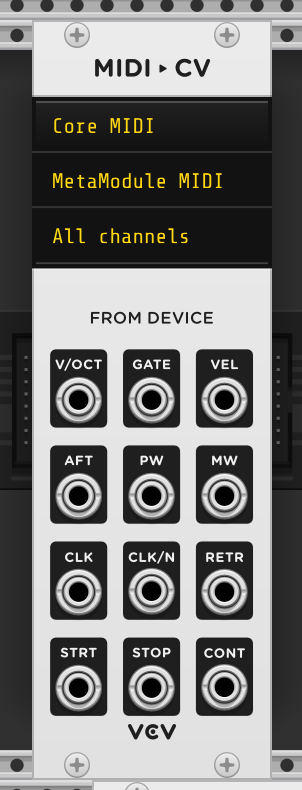
From there it works exactly like a MIDI controller plugged into the MetaModule:
-
MIDI sent from the computer to the MetaModule can control mapped knobs, play notes, switch Knob Sets, and load patches, just like MIDI from a hardware controller. See Using MIDI.
-
MIDI sent from the MetaModule to the computer comes from the MIDI output modules in your patch, such as CV to MIDI (Notes), CV to MIDI CC, and Gate to MIDI. MIDI Feedback is also sent to the computer, which lets your DAW stay in sync with mapped knobs.
Mirroring the screen to a computer
- With Device Mode set to Video, the MetaModule appears to the computer as a standard USB webcam (a UVC device) named MetaModule Screen. Anything that can use a webcam can show the MetaModule's display: OBS Studio, QuickTime Player, video conferencing apps, and so on.
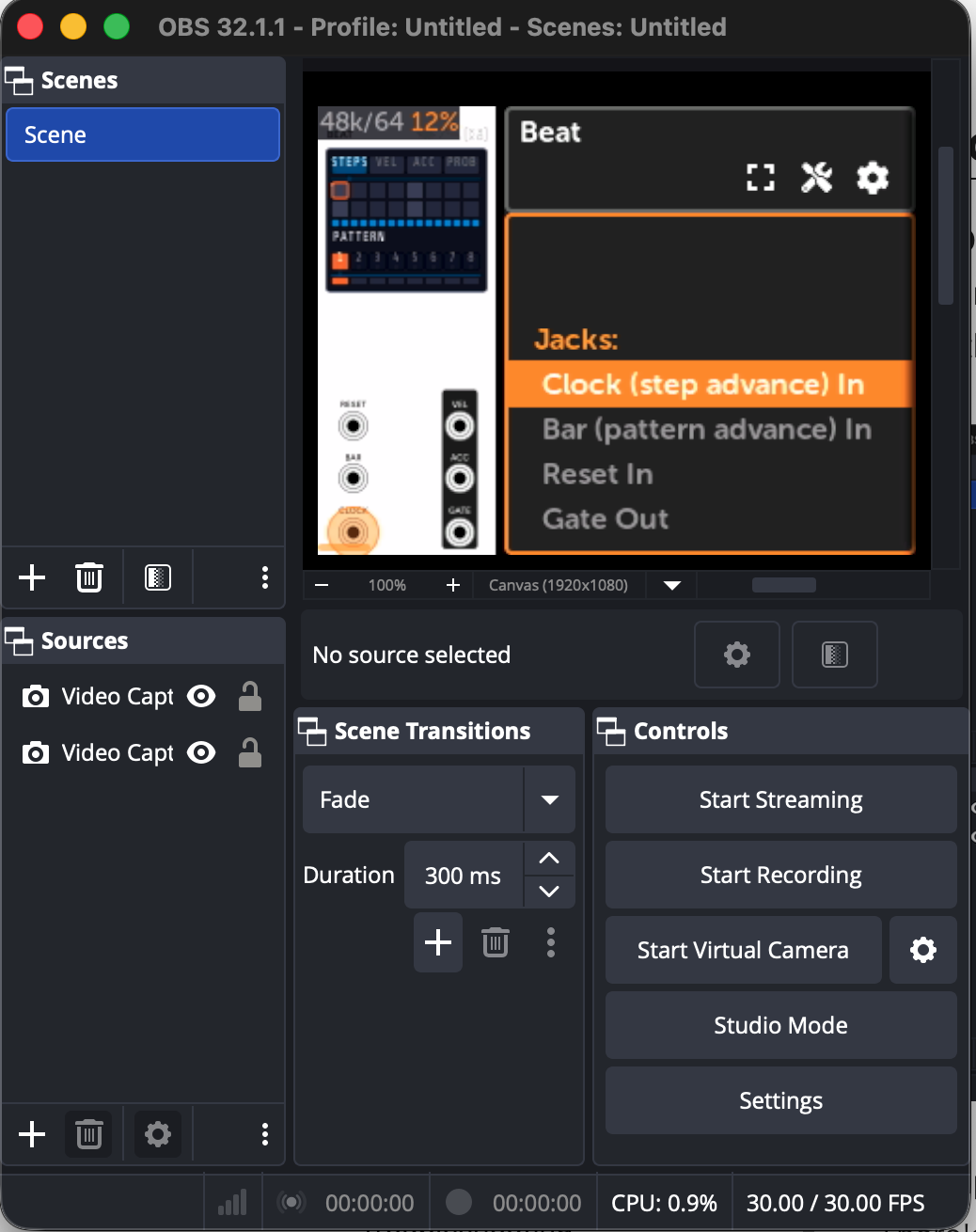
This is handy for recording demos, streaming, sending debug reports, and teaching, since you can capture the screen without pointing a camera at the module.
There's no driver to install — it uses the webcam support already built into macOS, Windows, and Linux.
Video Mirror X
Video Mirror X flips the mirrored screen horizontally. Many video and conferencing apps mirror a webcam image by default, which makes the MetaModule's text appear backwards. Turn this on to flip it back so it reads correctly.
This option is only available when Device Mode is set to Video.
Checking the USB connection
The Settings > Info page shows the current state of the USB jack, which is the
quickest way to confirm a connection is working. You'll see one of:
| Status | Meaning |
|---|---|
USB: Not connected |
Nothing is plugged into the USB jack |
USB Host mode, searching for a device |
Acting as a host, but hasn't identified what's attached yet |
USB Host mode, connected to a USB drive |
A USB drive is attached and mounted |
MIDI Host mode, connected to a MIDI device |
A USB MIDI controller or interface is attached |
USB Device mode, waiting for a host |
Acting as a device, but the computer hasn't connected yet |
MIDI Device mode, connected to a host |
Connected to a computer as MetaModule MIDI |
Video Device mode, connected to a host |
Connected to a computer as MetaModule Screen |
Console Device mode, connected to a host |
Connected to a computer as a serial console (see below) |
Troubleshooting
The computer doesn't see the MetaModule. Set USB Mode to Device Only and re-connect the cable. Also make sure you're using a USB-C cable that carries data — many cables are charge-only.
A MIDI controller isn't detected. Set USB Mode to Host Only. Firmware v2.3.0 also added workarounds for USB MIDI devices that don't follow the USB MIDI spec exactly, so devices that failed to connect on earlier firmware may work now.
The mirrored screen is backwards. Turn on Video Mirror X, or turn off the mirroring option in your video software.